To install SQL Prompt, you must have administrator privileges. If you're upgrading from a previous version, the installer does all the preparation for you.
Installing SQL Prompt
When you run the SQL Prompt installer, you can choose to install into Management Studio and/or Visual Studio:
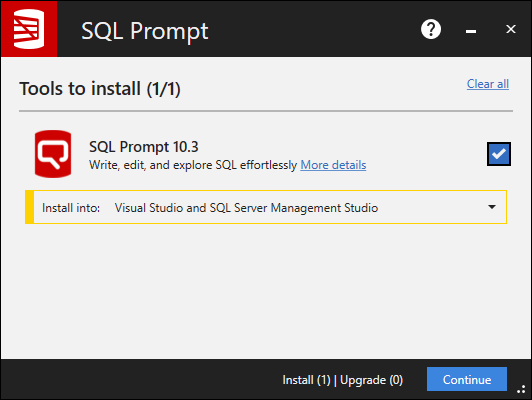
For the list of supported environments, see Requirements.
Running SQL Prompt
Start Management Studio or Visual Studio to begin using SQL Prompt. SQL Prompt features are available from the SQL Prompt menu:

It may be necessary to grant the SQL Server user a number of permissions for SQL Prompt to work correctly. See SQL Server Permissions for more information.
Customizing SQL Prompt
You can customize how SQL Prompt suggests, inserts and formats your code, to match the way you prefer to write queries. To change any of the default settings in SQL Prompt:
On the SQL Prompt menu, select Options.
See Managing SQL Prompt behavior and SQL Code Formatting and Styles.
Activating SQL Prompt
Find out more about activation
Uninstalling SQL Prompt
To uninstall SQL Prompt, use the Windows Control Panel item, Add or Remove Programs or Programs and Features.
If the SQL Prompt menu item is not removed from Management Studio or Visual Studio, see Removing SQL Prompt menu item after uninstalling.
Using SQL Prompt in Visual Studio
You can use SQL Prompt in Visual Studio 2015, 2017 and 2019. SQL Prompt only works in Database projects and SQL Server projects.
Activating SQL Prompt from the .msi File
If you'd like to install SQL Prompt from the .msi file and activate the license at the same time you'll need to include the license key during both the extract and install steps.
1. Extract the files from the .exe
"C:\Downloads>SQLPrompt_x.x.xx.xxxxx.exe" extract "C:\Redgate installers" /IAgreeToTheEULA RG_LICENSE=XXX-XXX-XXXXXX-XXXX
2. Install
msiexec /i "C:\Redgate installers\SQL Prompt x.x.xx.xxxxx\SQL Prompt_x.x.xx.xxxxx_x86.msi" TRANSFORMS="C:\Redgate installers\SQL Prompt x.x.xx.xxxxx\SQL Prompt_x.x.xx.xxxxx_x86.mst" ADDLOCAL=ALL RG_LICENSE=XXX-XXX-XXXXXX-XXXX
Was this article helpful?
Articles in this section
- Entra ID MFA Authentication
- SQL Prompt installation issues with the SSMS 22 Import Settings flow
- Prompt AI failed to log in
- Unable to access SQL Prompt AI features
- SQL History is blank or greyed out
- SQL Prompt missing from toolbar after installation
- SQL Prompt Error "hexadecimal value 0x00, is an invalid character. Line 1, position 1.
- Add SQL History to a shared folder
- Error: Something went wrong while signing in. Authentication failed.
- Installing and running SQL Prompt
Add comment
Please sign in to leave a comment.